The GIF is able to convey emotion and information in a quick and entertaining way that many other mediums can’t. But using GIFs can be somewhat of an art. Nailing the perfect tone, image, and timing of a GIF can be a tricky process, where a misstep could affect your brand’s reputation. To ensure you make the most of GIFs in your social media strategy, we’ve created the following GIF guide.
The GIF guide for social media marketers
What are GIFs?
If you enjoy having meaningless debates with coworkers, ask whether it’s pronounced with a soft ‘g’ like jifs, or with a hard ‘g’ like gift. Whichever way you say it, GIF is an acronym for Graphics Interchange Format, which refers to a file format that supports both static and animated images. GIFs allow you to present a short video clip in a far more condensed image format, and without sound. In other words, they’re quick, soundless videos that loop and don’t require a play button.
GIFs are so widely-used that the word “GIF” was named the 2012 Oxford Dictionary Word of the Year. However, the GIF isn’t exactly a brand new phenomenon. In 2017, the GIF will celebrate its 30th anniversary. Katherine Martin, Head of the U.S. Dictionaries Program at Oxford University Press explains how during this time, “The GIF has evolved from a medium for pop-cultural memes into a tool with serious applications including research and journalism, and its lexical identity is transforming to keep pace.”
How to explain GIFs to anyone under 35: “They’re like the moving pictures in Harry Potter newspapers.”
How to explain GIFs to your grandparents: Don’t bother, they probably don’t care about GIFs. Ask them about a time before GIFs. Then, appreciate GIFs even more.
Why you should use GIFs
The entertainment value of GIFs is obvious, but the business value might be a bit more difficult to see. But the potential and possibilities for GIFs are limited only by your own imagination. You should consider adding GIFs to your social media strategy because:
- GIFs show that you’re paying attention to internet trends
- GIFs show that you and your brand have a fun side
- GIFs can add more context to a shorter message, post, or Tweet
- GIFs get your message across in a shorter amount of time
- GIFs are easily shareable
- GIFs convey emotions better than text or photos alone
Now that you know some of the key reasons to incorporate GIFs into your social media strategy, you’re probably wondering where you can actually find some quality GIFs.
Where to find GIFs
The title here could actually be ‘where NOT to find GIFs,’ as the internet is just crawling with these animated delights. But not all GIFs are created equal and you could spend hours sifting through sources in order to find something you can actually use.
To save you time, check out the following sites for GIFs you wouldn’t be embarrassed to use in your social media content.
Giphy is my go-to GIF resource, and for good reason. Giphy is the world’s largest library of animated GIFs, so if you’re looking for something there’s almost a guarantee that you’ll be able to find it there. Just type in a keyword such as the emotion you want to convey (i.e. excitement) or what you want to be in your GIF (i.e. dog) and you’ll quickly get a list of relevant results.
Gifbin.com is another GIF library, but with a few features that make it a stand out. If you are lacking inspiration for posts or just don’t know what kind of content to post today, use Gifbin.com’s Random GIF generator to spark some creativity. While you might have to click the button a few times to get a GIF that makes sense, you never know what kind of theme or message you’ll think of as Gifbin.com works its magic.
Reddit is a website that lets users upvote the good stuff and downvote the bad. And the GIF-specific subreddit has turned it into one of the best collections.
These are great resources for finding already-made GIFs, but sometimes the situation calls for a completely customized solution. This is when knowing how to create your own GIFs will come in handy.
How to create your own GIFs
Creating your own GIFs is a surefire way to show off your brand’s creativity and personality. You can easily make your own GIFs by uploading your own images and videos to any of the following online tools:
If you’re an enterprising individual, you can also make your own GIFs within Photoshop. Open up your video file in Photoshop, use the timeline tool to crop to the length you want, and select “Save for Web”. Don’t forget to set ‘looping’ to ‘forever,’ to ensure that you don’t end up with a sad single loop animation. If that seems confusing, there are countless YouTube tutorials to walk you through the process.
Instagram’s Boomerang also offers a fun way to make something close to a custom GIF using your very own mobile phone camera. Boomerang takes a short burst of photos, combines, and reverses them to create a looping clip that you can share instantly.
Giphy Cam provides a mobile option for creating GIFs on the go. The app allows you to record a GIF, add filters, effects, and text, and then share or save your GIF.
Tips and tricks for using GIFs
How to use GIFs on Twitter
Twitter launched an integrated GIF library in 2016 in partnership with GIF resources Giphy and Tenor (previously Riffsy). As Twitter explains, “Whenever you’re composing a Tweet or Direct Message, you can search and browse the GIF library. So if you’re looking for the perfect cat yawn or dance move to express exactly how you feel, just click the new GIF button. You can search by keyword, or browse categories of different reactions like Happy Dance, Mic Drop, or YOLO.”
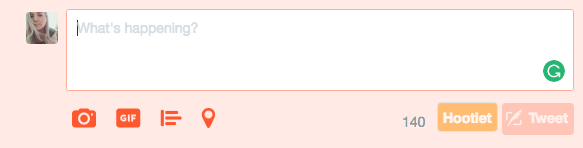
To access this feature, simply click on the GIF icon when composing a Tweet. You can choose from one of the categories provided, or search for something specific.
If you need more detail on how to add GIFs to your Twitter content, check out Twitter’s thorough instructional resource on posting photos and GIFs.
Now that adding GIFs to your Tweets is so easy, you need to think about how you will be using them in your strategy. One of the top places GIFs are used for a business purpose, is through a classic Twitter back-and-forth. Instead of using words alone, use a GIF to truly evoke the emotion you’re trying to communicate. This brings a dose of fun and entertainment to your timeline, and helps not only to keep your audience engaged, but your brand from looking too serious.
In addition to this classic use of GIFs, Twitter suggests using them in the following business scenarios.
Create animated posters for sales or events
If you’ve ever wished you could create a moving advertisement without investing in a video ad, this is your chance. If done right, a GIF can share much more information than 140-characters can and, as Twitter explains, “they can also act as a highly shareable information piece followers can Retweet.”
Feature your products
While most people won’t want to watch a full minute-long video of your product, a GIF will fit into most busy schedules. Share a GIF highlighting the features of your product, or short snippets of how to use it (if applicable).
Visualize your data
Static charts and data visualizations are great, but you can elevate your content and make things much more interesting for your audience by making GIFs to show off data.
How to use GIFs on Facebook
While Facebook didn’t always support the use of GIFs, recent updates have made GIF sharing easy on the network. To share a GIF on your Timeline, simply copy and paste the link to the GIF. Wait for the preview to appear, and then post away!
For example, to share a GIF from Giphy, the site provides the following instructions:
“If you share a Giphy link (i.e. http://gph.is/1aljRyd) on Facebook, the GIF will play in the newsfeed, the profile page, the permalink of the post, embeds of the post, and as comments!”
If you’re a business looking to use a GIF to boost a post, you’re in luck. Follow the same steps as mentioned above, and then click on “Boost Post.” For best results with your GIFs, Facebook recommends that you:
- Choose high quality images or animations
- Use a link ending with .gif
- Use a GIF with a file size less than 8MB
- Use a GIF with less than 20 percent text on the image
- Avoid GIFs that flash or are grainy, as your boosted post may not be approved
Now that you know the logistics of using GIFs on Facebook, there are a few different ways you can use them in your social media strategy.
Show behind the scenes
The majority of Facebook users prefer a silent timeline, so sharing some behind the scenes footage in a quick and soundless format such as a GIF is a great way to showcase your brand in an easily consumable way. Feature your employees, offices, or other behind the scenes events such as photo shoots to give your audience a glimpse into who or what makes your brand unique.
Feature your products
Just like on Twitter, you can use Facebook to feature GIFs of your products or services in action. Make custom GIFs showcasing your products to show them in a new (and animated) light.
Share relevant instructional content
The short and easily-digestible nature of GIFs makes it easier to hold your audience’s’ attention. Add value to your followers’ Timelines by sharing how-to and instructional GIFs that are relevant to your brand. For example, if you’re a beauty company you could create a GIF tutorial “3 steps to an effortless cat-eye.” Exercise that creativity, and think about what kind of instructional content you could share in GIF format.
How NOT to use GIFs
Now that you have some idea of how to use GIFs, you need to know how not to use them. When the GIF experts at Giphy joined us for a #HootChat, they shared some guidance on what to avoid when using GIFs. Here are some of the major “don’ts” according to GIPHY:
Don’t post GIFs out of context
Make sure you are 100 percent certain that the GIF you are using is not only relevant, but that you know where it comes from. Context is key, and so many GIFs have meaning that is rooted in the source, whether that be a movie, music video, or news clip.
Don’t be too casual
Trying to be cool is probably the most uncool thing on the planet. As the Giphy team explains, “It’s like reciting movie quotes. When someone uses the perfect GIF, it’s entertaining, [but] when a brand gets too meme-y or ‘hip with the kids,’ it’s time to get off the internet.”
Don’t post overly branded GIFs
The beauty of GIFs is in their brand-less nature. Don’t ruin this by trying to smother your GIF in logos or trademarks. Content marketing is about not hitting your audience over the head with the fact that they’re seeing branded content, so try your best to limit any blatant sales pitches. Instead, “skip the over-done branding in favor of a mini logo in the corner, some subtle product placement, or no official branding at all.”
GIFs are one of the easiest ways to bring your content to life. Use them for everything from conveying emotion to showcasing your product and you’ll be on your way to mastering the art of the perfect GIF in a jiffy.
 Image via LinkedIn







 s. 1 RT = 1,000 wildflowers planted!