Showing posts with label #ContentMarketing. Show all posts

Tuesday, May 2, 2017

The Top Snapchat Statistics You Need to Know for Business


Snapchat has grown from a marketing question mark to a marketing must-have in a relatively short time. Since its inception, Snapchat has skyrocketed in popularity amongst not only individuals, but businesses.

Like any social media strategy, using Snapchat for business requires thoughtful planning. To help you out with this, we’ve collected the top Snapchat statistics you need to know for your business.


.
Snapchat usage statistics

Snapchat has over 100 million daily active users

To put that in perspective, the platform had only 5 million daily users in December 2013—and it’s still growing. As a social media marketer, this is a fact you can’t ignore.

You need to be where your audience is, and with such a high number of users there’s a good chance your customers are on Snapchat.
54% of Snapchat users log in every day

While more than half of all Snapchatters use the app daily, another 32 percent use it two to five times per week. This means that 87 percent of Snapchat users are using the app at least twice per week. Snapchat users are engaged, which means they’re more likely to be receptive to your message.

Snapchatters watch over 10 billion videos per day—an increase of more than 350% since2015

With this kind of growth, using Snapchat to broadcast and share video is something your brand might want to consider. One way you can use Snapchat’s video capabilities for business, is with Snap Ads.

Snapchat’s advertising tool, Snap Ads, offer companies a great way to create and share mobile video ads. Because it’s Snapchat, there’s also the option to add fun interactive elements like filters and Sponsored Lenses. Snap Ads begin with a vertical, full screen video ad up to 10 seconds long, and give viewers the option to swipe up for more information such as product details, website links, long form video, app install ads, or articles.

When it comes to using Snapchat videos to tell a story with your brand, you’re only limited by your own creativity.
More than 400 million Snaps are sent every day and 8,796 photos are shared on Snapchat every second

The high use of Snapchat means that users aren’t just sending or posting a couple of Snaps each day—they’re having full-on conversations through their Snaps.

Knowing how engaged your audience is is a great starting point for building your social media strategy, so take this information and plan accordingly.
With a 72% adoption rate, Snapchat is the most-used social media platform among 12 to 24-years-olds

This is one of the most coveted demographic for marketers, and brands are constantly looking for new and unique ways to reach them. And for good reason—those under 30 are the largest demographic in the United States.

What might be even more important to marketers? By 2020, this age group is expected to spend $1.4 trillion every year, and are expected to inherit approximately $30 billion in the future.
Snapchat for business statistics
A Geofilter delivered to a national audience will typically be seen by 40% to 60% of daily Snapchatters

If you’re looking for a solid way to promote your brand on Snapchat, an on-demand Geofilter is a great option. As our Social Media Glossary explains, “Geofilters are special overlays for Snapchat users that reflect the geographic location they are in.“

Businesses can purchase a custom Geofilter for an event, location, or promotion. The cost of a custom Geofilter depends on a few different factors, such as the size of the area you want your Geofilter to be active in (which can range from 20,000 square feet up to 5 million), as well as how long you want it to be available.

If looking for a step-by-step guide to creating your own custom Geofilter, see our post How to Create a Custom Geofilter on Snapchat.

Snapchat’s Sponsored Lenses are forecasted to reach 16 million viewers daily

If there’s anything that has set Snapchat apart from the crowd, it’s the fun selfie lenses. You’d have a hard time finding someone who doesn’t like making themselves look like a cute puppy.

Brands can get in on this unique feature by creating Sponsored Lenses. Companies can add their logos to a Lens, along with a fun interactive mask or animation. After playing with a Sponsored Lens, users then share their Snaps or post them to a Story.

You get your brand in front of users for however long they play with your Snapchat Lens (an average of 20 seconds), as well as the time that a user’s friends spend viewing their Snap

Because of this potential, you’ll want to make sure you create something highly shareable. This isn’t the place to simply slap your logo on a boring image—nobody wants to share that with their friends.

Gatorade found success with their Sponsored Lens, which let users experience a virtual dumping of the famous sports drink, engaging a large audience with an interactive experience.

And their efforts paid off. Gatorade received 165 million views, and saw an eight point increase in purchasing intent from those who engaged with the Lens.
58 percent of college students would be likely to purchase a brand’s product or service if they were sent a coupon on Snapchat

You can post a coupon to your Snapchat Story and encourage your audience to take a screenshot of it, or send a Snap of a coupon to users individually. Sixty-nine percent of college students say they would be more inclined to open a Snap from a brand than an individual they don’t know, so you’re good to go as long as you aren’t spamming your audience.

Vertical videos are watched 9 times more than horizontal videos on Snapchat.

When sharing content on a social network, understanding your audience’s preferred format is key. You could create the most compelling video, but if it isn’t packaged in an appealing way it won’t have good reach.

On Snapchat, users have made it clear that they prefer vertical video. Your Snapchat audience doesn’t want (or expect) to have to turn their phones sideways to get the full message.

Brands are charged an average of $750,000 per day to advertise on Snapchat

While you can create a branded Geofilter for as little as $5, the higher-level business features are priced accordingly.

As we explain in the post All the Social Media Advertising Stats You Need to Know, “CEO Evan Spiegel and his team have forecasted that Sponsored Selfie Filters, which essentially allow users to turn their selfies into ads, will reach up to 16 million viewers a day. With the cost of these ads maxing out at $750,000 per day, you can bet Snapchat is turning to the biggest brands in the world, or at least those with huge social media advertising budgets.”

Before you devise a marketing strategy for any social media network, you need to be equipped with as much information as possible. With the Snapchat statistics above, you have the key data you need for marketing success.


Wednesday, March 29, 2017

Useful Social Media Tools for Marketers


Need some new social media marketing tools?

Looking to save some time?

New tools have recently emerged to meet the evolving needs of busy social media marketers.

In this article, you’ll discover six tools that will improve your social media marketing workflow.


#1: Create User-generated Content Feeds With Waaffle

According to Yotpo, ads based on user-generated content (UGC) can get 4x higher click-through rates and a 50% lower cost per click (CPC) than average. Managing user-generated content campaigns can be tricky though. Waaffle simplifies the process by creating aggregate custom feeds based on any @ account or #hashtag.

Waaffle’s current “early bird” pricing starts at $9/month per campaign. To get started, create an account and attach your Twitter or Instagram profile. From here, you can set up campaigns to track content published by individual accounts or that contain a specific hashtag.


You can create Waaffle feeds based on individual accounts or specific hashtags.

You can then view content based on your feed parameters.


Waaffle displays content matching your campaign parameters.

Click the Analyse tab to learn more about the content you’ve aggregated.


You can find out more about your aggregated content on the Analyse tab.

Certainly, Waaffle is a valuable addition to your own UGC campaigns. However, you can also use the tool to:
Monitor performance of your company accounts and hashtag campaigns.
Publish content you’ve curated from other accounts to your feeds.
Monitor your competitors’ accounts or hashtag campaigns to inform your own channel curation.
#2: Curate and Bookmark Content from Influential Sources With Refind

Refind is a free tool that aims to address an issue every social media manager has faced: trying to remember an article you saw that would be perfect for sharing on your social profile. While Refind is a great option for curating personal articles to read later, it’s even more beneficial for loading your social channels with relevant updates.

The desktop version of the program is currently in beta, so you’ll need to submit your Twitter ID to see if you’ve been invited. If not, you have the options to join the waitlist or tweet about the app to gain priority access.


Enter your Twitter handle to see if you’re invited to the Refind desktop beta.

Refind’s iOS and Android apps are available to everyone, so you can access the tool on your smart device. A quick wizard walks you through setting up your Refind channel. First you’re prompted to choose your interests.


Choose interests for your Refind account.

Next you’re offered suggestions for influencers to follow in these spaces.


Refind suggests relevant influencers you may want to follow.

The final step shows you how to save links from your device. You can also choose if you want to automatically import links you share on Twitter.


Select the check box to import the links you’ve shared on Twitter.

Once signup is complete, you’re taken to the welcome screen where you can take a tour of the app or begin browsing links that have been selected for you.


Refind’s welcome screen shows recommendations for you.

Within each suggested link, Refind provides buttons that let you save the link, send it directly to Twitter, or perform a number of other actions.


With each article, you’ll see buttons that allow you to save, tweet, or perform other actions on the article.

Here are a few tips for getting the most out of this tool for social media management:
Save interesting links you want to upload to your social profiles later.
Follow influencers in your industry to curate links they share for your audience.
Check a link’s stats to see how many others have shared it (and therefore, how interesting your audience might find it).
#3: Add Text Overlay to Social Media Video With Rocketium

Rocketium is one of the simplest ways to create overlaid-text videos for your social media and content marketing campaigns. Use it to create quick videos (like BuzzFeed’s Tasty series) to fill out your social profiles.

This tool is free for watermarked videos; paid plans at $19/month and $49/month will unlock premium features.

Rocketium’s video editor consists of two screens. On the first screen, add your content including images, videos, and captions. When you’re finished, click Continue in the upper-right corner.


Add content to create your Rocketium video.

On the next screen, customize your video with different animation styles, music clips, aspect ratios, and more. When you’re done, click Finish.


Customize your Rocketium video.
#4: Optimize and Automate Social Posting via Slack With Yala

If you use Slack, you need the Yala bot. This free tool uses machine learning algorithms to identify your social following’s most active times and lets you auto-schedule “series” of posts from within Slack. Yala currently works with Facebook and Twitter, and the team is exploring offering a similar service through Facebook Messenger.

To get started, click the Add to Slack button.


Click Add to Slack to install the Yala integration.

Once you grant the appropriate permissions, Yala will initiate a tutorial via private message to help you connect your social accounts.


Yala takes you on a quick tour of the app.

Once you’ve added a Facebook or Twitter profile, Yala will make recommendations about your ideal posting schedule:


Yala recommends posting times for you.

You can call Yala at any time for instructions or to schedule posts (including both text posts or images with text). It’s a simple, great option if your team already spends a lot of time on Slack.
#5: Identify and Schedule Topical Content With Quuu

Quuu is an automated social scheduling tool that suggests updates for your social profiles based on topics you choose.

The tool ties into Buffer and HubSpot, and available features include the ability to receive content suggestions for multiple profiles and manually or automatically approve suggestions. You can also promote your own content pieces with Quuu Promote.

A limited free plan is available; paid plans begin at $10/month.

Quuu is easy to set up. After you create an account, select the platform you’d like to send your suggestions to.


Quuu integrates with both Buffer and HubSpot.

Then you’ll need to grant the tool you selected access to your account.

Once you’ve completed the sign-up process, choose from different interest categories based on your niche and its keywords. (The free plan limits you to five categories.)


You can select up to five categories with Quuu’s free plan.

Also, set the number of suggestions you’d like to receive per day. (You’re limited to two per day on the free plan.)


You can receive two suggestions per day with the free Quuu plan.

Once your account is set up, suggestions will automatically be sent to your Buffer or HubSpot account, where you’ll be able to manually approve the tool’s suggestions (unless you’ve set your updates to publish automatically).
#6: Monitor Social Ad Spend via Slack With Reveal

Another helpful Slack bot, Reveal, brings your paid ad campaigns into your chat tool. The goal of the app essentially is to warn you when your ads are losing money. Paid plans begin at $10/month and 14-day free trials are available.

To add this tool, click the Add to Slack button on the Reveal homepage. It then leads you through the same permission-granting steps as Yala. Once set, Reveal offers a similar set of tutorials.


Like Yala, Reveal takes you on a tour of the app.

For best results, use Reveal’s reporting features to monitor your daily, weekly, and monthly campaign performance and receive alerts when your CPC changes significantly.

Conclusion

New social media management tools hit the landscape every day. While these are some that are worth checking out, there are plenty of others being launched to address the common challenges of social media marketers.

Thursday, February 23, 2017

Job App Inspiration: Creative Cover Letters 101


Your cover letter is supposed to catch a prospective employer's eye, but that's easier said than done when it's buried under a pile of applications. As a result, nearly every professional has his or her own advice when it comes to writing one of these formal introductions and bids for employment.

There's a typical formula many follow, but some job hopefuls have tried more inventive techniques to get their applications noticed. While success isn't guaranteed, these individuals chose more creative paths on the road to employment.


SEE ALSO: No Resume, No Cover Letter — Instagram Scored the Job

Whether you're looking for ideas to improve your job search, or you just want to see what people are willing to do to get an interview, here are six impressive cover letters that can inspire you to up your application game.

1. The Direct Approach

Lindsay Blackwell wanted to be social media director of the University of Michigan. Instead of typing up a typical cover letter, the tried and (sometimes) true method, she created a website with a video directed at Lisa Rudgers, the university's vice president for global communications and strategic Initiatives.

While Blackwell didn't ultimately get the job, she did land an interview for the position — an impressive feat on its own.

2. Using the Changing Communication Landscape


Video: YouTube, Graeme Anthony


Graeme Anthony, a PR practitioner looking for a job, uploaded his professional information to YouTube rather than creating a traditional cover letter and resume. Anthony's interactive video application included a breakdown of his skills and timeline for potential employers. It showed his video-producing and editing knowledge as well as his ability to use online resources.


3. The Power of Being Honest

Sometimes employers appreciate sheer honesty above well-written prose and assertions of dedication and passion. An unnamed applicant applied for a summer internship on Wall Street with a short but honest letter.

Whether the lack of embellishment helped secure the position for the student is unknown, but it made quite a splash online and proved that honesty really can be the best policy.

4. A Little Design Goes a Long Way


Image: Alice Lee


With a company as geared to the visual as Instagram, it can take more than a well-worded letter to catch the team's attention.

Twenty-year-old Alice Lee used her design skills to create an interactive website, complete with an Instagram stream with the social network's API. Instagram didn't end up hiring Lee, but she did get to speak to CEO Kevin Systrom, and Lee's site eventually led to an internship with another company.

5. Using the Product Itself


Video: SlideRocket, Hanna Phan

If the company you're interested in makes a specific product, integrating it into your cover letter will show that you're not only familiar with the company, but also that you're resourceful.

For Hanna Phan, the product she needed to use was a slideshow creator. Her imaginative cover letter for SlideRocket incorporated their technology and her style to create an engaging cover letter. If anything, Phan proves that all it takes is a little extra effort and knowledge of a product to make a lasting impression on potential bosses.

6. Using Ads to Your Advantage


Most of us have Googled ourselves at least once or twice, if only to make sure that nothing strange turns up with our names. With that in mind, Alec Brownstein decided to buy ads that would appear when specific people searched for creative directors' names, or more importantly, when said directors Googled themselves.

The ads led to Brownstein's site with a message that simply read, "Googling yourself is a lot of fun. Hiring me is fun, too." Brownstein now works at Y&R New York, and the ads only cost him $6. It isn't exactly a cover letter, but it isn't a bad strategy.

Thursday, February 16, 2017

Social Media Metrics that Really Matter—and How to Track Them


When your boss asks you for the ROI of your latest social media campaign, how do you respond? Too many social media managers fall back on the easy answers: we gained this many new Twitter followers, this many Retweets, this many Facebook shares, and so on. Sure, these social media metrics offer surface insights into how a campaign or piece of content performed, but they don’t really show executives how your efforts are helping boost the bottom line.

It’s time to step things up a notch so that your social media analytics better reflect how all your hard work is paying off. Here’s a list of social media metrics you may already be tracking and how to take them to the next level.

7 ways to step up your social media analytics
1. Don’t just track link clicks, track click-through with bounce rate

If you share original content to social media, you’re probably already tracking how many people click-through to that content. Click-through rates are important as a metric, since they indicate that your social media messaging is compelling enough to spark interest with your audience. But these clicks become a far more telling metric, at least in terms of ROI, when paired with your bounce rate.

Bounce rate refers to the percentage of page visitors who leave your website after only viewing one page. In the case of social media, it would reflect someone clicking on a link you post to Twitter or Facebook, arriving on your website or blog, then leaving without viewing any other content.

Ideally, we all want people to stay on our sites forever (or until they convert—whichever comes first). Bounce rate is an important metric to track for your web properties, in general, but why is bounce rate important as it relates to social media? It allows you to powerfully illustrate your social ROI by comparing it to your other sources of web traffic.

Track the bounce rate of website visitors who came from social networks, and compare that rate to website visitors who visited your site directly, arrived from Google, or arrived from any paid advertising campaigns. If your social media bounce rate is lower than those other sources, you can show your boss that you’re targeting the right people on social media, and the traffic you’re driving is more valuable to the business.
How to track this:

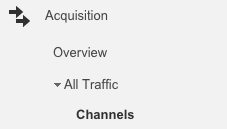
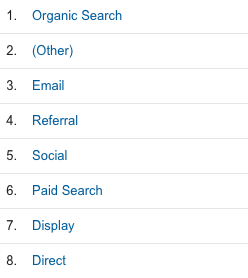
To track this metric, you need to be set up on Google Analytics or another analytics provider. In the case of Google Analytics, you’ll want to go to the “Acquisition” tab, and look under “All Traffic” for the “Channels” segment. Click on the “Bounce Rate” button and it should rank all of the channels from lowest bounce rate to highest.


In the example below, you’d be able to show your boss that social media is less effective than search and email, but more effective than search ads, display ads, and direct traffic to your website. That kind of insight should go a long way as you try to prove the value of social media to your business.


2. Don’t just track web referrals, track share of traffic driven

If search has a bounce rate that’s twice as high as social media, but drives 20 times the traffic, social is still going to look less valuable in comparison. That’s why social media managers need to track more than just the amount of traffic driven, and start tracking the share of traffic driven by social.

Doing this, once again, puts social up against other marketing channels like search or display ads, in order to determine the real value for your business. If you have 100,000 website visitors this month, saying social drove 25,000 website visits might not be as powerful as saying that social drove 25 percent of website traffic this month, second only to search and well ahead of any other channel.
How to track this:

Tracking share of traffic driven can be done in the same place as your bounce rate. Within Google Analytics, under Acquisition and Channels, click on the “Sessions” field. This will rank all of the channels based on the number of sessions they drive. In the column, beside the actual number, you should also be able to see a small percentage figure. This percentage represents the share of traffic being driven by each channel. Easy, peasy.
3. Don’t just track mentions, track social share of voice

Mentions are important because they indicate how much people are actually talking to—and about—your business on social. But this metric becomes a lot more valuable when you use it to show how you stack up against your competitors by tracking your social share of voice.

Put simply, your social share of voice details what percentage of mentions within the industry are about your brand and what percentage are about the competition. This allows you to show your boss two important things: that all of your competitors are also on social media and that you’re doing it better than they are. Through this one metric, you can eliminate doubts about whether it’s worth being on social media (if we’re not there for clients and prospects, you can bet our competitors will be), and show just how well your social efforts are being received. Tracked over time, social share of voice can be a powerful illustration of your social campaigns paying off, as you surpass competitors and become a leader in your industry.
How to track this:

Calculate all the mentions of your brand, as well as those of your competitors. (Hootsuite Analytics can help you see these numbers at a glance, instead of having to add them all up manually.) Then, add them all up to get the total number of industry mentions. To show the number of mentions your brand received as a percentage of that total, just divide your mentions by the total, and multiply that number by 100. Yay for math!
4. Don’t just track comments, track conversation rate

Many social media analytics reports cover how many comments were left on each post. But this is somewhat useless information without any context. Getting an average of 20 comments per post is a lot more impressive if you only have 200 followers, after all. A better way to report on this metric is by calculating your conversation rate, a metric coined by Avinash Kaushik, author and digital marketing evangelist at Google.

Your conversation rate is the ratio of comments per post to the number of overall followers (or Page Likes) you have. You can do this for one of your social networks in particular, or all of them. This helps you determine how much of your audience is compelled to add their voice to the content you post on social. Or as Kaushik puts it: “Is what you are saying interesting enough to spark the most social of all things: a conversation?”
How to track this:

Use Hootsuite Analytics to pull the number of comments you received during your specific reporting period. Divide that number by your total number of followers (or Page Likes). Multiple that number by 100 to get your conversation rate as a percentage.
5. Don’t just track shares, track amplification rate

Kaushik offers a similar metric when it comes to tracking shares. Instead of only tracking the number of times your content is shared on social, your amplification rate measures the ratio of shares per post to the number of overall followers (or Page Likes). By following you, these people have already shown a willingness to associate themselves with your brand, so you’d expect them to also actively share your content as well.
How to track this:

Take the number of times your content was shared (or Retweeted, or repinned, or regrammed—or all of the above) during your reporting period and divide that number by your total number of followers (or Page Likes). Multiple that number by 100 to get your amplification rate as a percentage.
6. Don’t just track likes, track applause rate

Likes are also valuable social media currency, but not when they’re being reported as a stand-alone metric. Kaushik suggests tracking your applause rate instead, the ratio of likes per post to the number of overall followers (or Page Likes) you have. Again, this will provide the context needed to make likes more than just a vanity metric. Your applause rate will let you know exactly how much of your audience is finds your content interesting (or not).
How to track this:

Add up the total number of likes your posts received during your reporting period. (Again, using Hootsuite Analytics to pull these numbers will help avoid a lot of manual math.) Divide that number by the overall number of followers (or Page Likes). Multiple that number by 100 to get your applause rate as a percentage.
7. Don’t just track numbers, track leads

Leads generated by social are one of the most important metrics you can track, since they can be directly tied to revenue. If you’re trying to prove social media’s value to your business, delivering a fresh batch of warm leads is a surefire way to turn the right heads.
How to track this:

Generating measurable leads through social media can be achieved in several different ways:
Sharing gated content
Using Hootsuite Campaigns to run a contest with a form fill entry
Hosting social media events that require registration, like broadcasted Google Hangouts
Using social media advertising to target prospects with free demos or free trials

Regular content can also generate leads, by driving people to web properties where they eventually tick enough boxes and share enough information to become leads. These leads are, unfortunately, a little harder to track.

The key to tracking leads is ensuring that the links you share are trackable within your marketing automation or analytics software—be it Google Analytics, Marketo, Salesforce or something else. To track the leads you’re generating, every link you share on social media should include a UTM code. This code will follow anyone who clicks that link as they visit your website and become a lead, either right away or later on in their journey. This allows you to attribute leads to individual social media messages or campaigns.

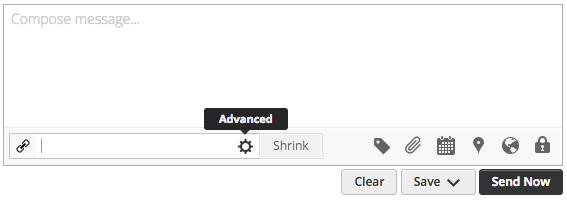
Within Hootsuite, you can add custom UTM parameters to any link you share in the “Compose message” box. To do so, click the link shortener field and then hit the little cog symbol to get to the “Advanced” settings.


You should then see the option to add custom URL parameters by typing a UTM code into the field before shortening your link.

Social Media Video Formats Marketers Need to Try

There’s no question that social video has become a critical part of online marketing. After all, Facebook alone has 8 billion video views per day, and Bloomberg reported that Snapchat had 10 billion video views per day as of April 2016. That’s not even counting all the other social media video formats on channels like Instagram, Twitter, and YouTube.

And if you think you’re seeing a lot of video in your social feeds now, hold onto your hat: Cisco predicts that online video traffic will increase three times from 2015 levels by 2020, so that video traffic will represent 82 percent of all consumer internet traffic within the next three years.
Perhaps it’s not surprising, then, that more than 70 percent of U.S. marketers planned to use social video ads within the 12 months starting May 2016.
Of course when we talk about social video, we’re actually talking about several different things at once. While some types of video are designed to have a long shelf life, others are much more ephemeral, disappearing after only a day. Let’s look at the different social media video options beyond the standard native social video, and explore how to use them on the various social media platforms.

6 types of video for social media

Here’s a primer on each of the social media video formats, including the key technical details you need to create one for each network.

1. Live video

According to eMarketer, more than a third of internet viewers say they watch live video online, with Facebook Live as the most popular channel, followed by YouTube live streaming. Live video is also available on Twitter and Instagram.

Facebook Live Video

You can start a Facebook Live broadcast spontaneously, or schedule one for later. The commenting feature on Facebook Live Video makes it a great way to interact directly and authentically with your clients and fans.
Technical requirements:
  • Resolution: Maximum 720p (1280 x 720), 30 frames per second
  • Maximum bit rate: 4 mbps
  • Minimum video length: None, but Facebook recommends 10 minutes
  • Maximum video length: 4 hours
  • Title length: Maximum 255 characters
Find the step-by-step instruction and some best practices for maximizing your audience, in our guide to Facebook Live video.

YouTube live video

Most technical requirements for YouTube live video are managed through a YouTube verified encoder. You’ll need to download one before you can post live video on YouTube.
The video below explains how to start your first stream.
You can also use Live Chat to interact with viewers—or allow them to interact with each other—during your stream, as explained in the video below.
Keep in mind that while the live video is archived after you finish broadcasting, the live chat is not.

Twitter live video

Twitter has owned the live-broadcasting app Periscope since before the latter even launched. But only in December 2016 did Twitter make Periscope’s live video functionality available to all Twitter users, without downloading the Periscope app.
Technical requirements:
For now, you can only live stream directly on Twitter from your smartphone. For more options—like the ability to stream from a professional camera or GoPro—you can send your stream to Twitter from the Periscope app, as we explain in our Periscope marketing guide.
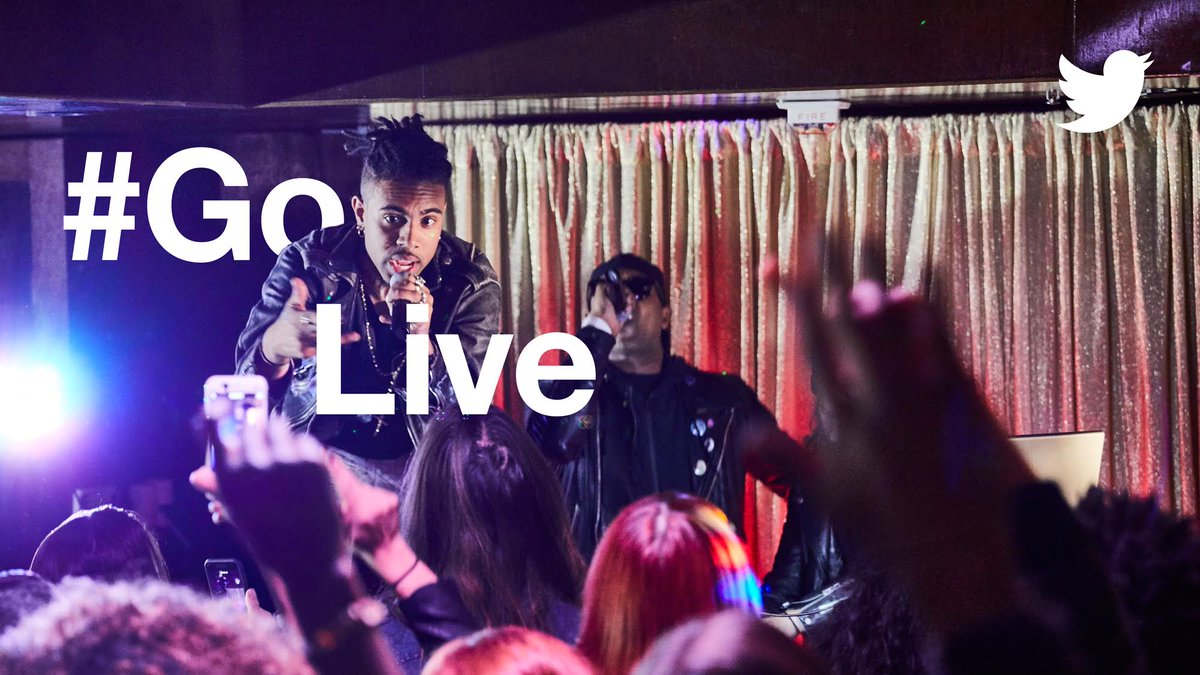
To launch your live social video straight from Twitter, tap the compose icon, then Live. When you’re ready, tap Go Live to start broadcasting.

Instagram live video

Unlike live videos on the other social networks, Instagram live videos cannot be archived. Once the broadcast is over, the video is gone, so make sure you’re also recording to another source if you want to have something more permanent.
Technical requirements:
It’s pretty simple: you can share live video on Instagram from your smartphone with the latest version of the Instagram app. The maximum live video length is one hour.
To launch your live Instagram video, tap the camera icon in the top left corner of your screen or swipe right from your feed, then tap Start Live Video. The broadcast will appear in your Instagram Story.

2. 360 video

Think of 360 video as an entry point to virtual reality: it’s a social media video format that lets viewers virtually rotate the camera to change their point of view, allowing them to immerse themselves in the content you present, as in this National Geographic 360 video on Facebook.
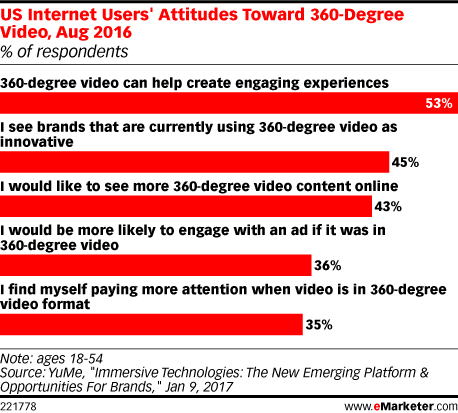
The format of 360 video is still new enough that it stands out from regular old 2D video. According to eMarketer, more than half of users find 360 video engaging, and more than one-third say they’re more likely to engage with 360 video than with other social media video formats.
6 Social Media Video Formats Marketers Need to Try | Hootsuite Blog
Image via eMarketer.
You can post pre-recorded 360 videos on Facebook and YouTube. To create these videos, you’ll need a 360-degree camera—a small device that records from all angles, mimicking a multi-camera set-up.

Facebook 360 video

If you record your video with a 360-degree camera, it should automatically add metadata to the file that will allow Facebook to recognize the file as a 360 video, so you can upload it to your page as you would any other video. If not, you can add the metadata yourself.
Technical requirements:
  • Video with 360 metadata embedded
  • Maximum length: 30 minutes
  • Maximum file size: 5 GB
Before publishing the video, click the Advanced tab, then check the box next to This video was recorded in 360° format. Click the 360 Controls tab and set the default point of view.
For inspiration, check out these great examples of how brands are using Facebook 360.

YouTube 360 video

YouTube has more specific metadata requirements than Facebook, so you may wish to follow their guide to adding metadata using an app or script.
Technical requirements:
  • Video with 360 metadata enabled
  • Recommended resolution: 7168 x 3584 up to 8192 x 4096
  • Recommended 360 cameras: Ricoh Theta, Kodak SP360, IC Real Tech Allie
Then, you can upload the file like a normal video, but be aware that it can take up to an hour for the 360 effect to become available.

3. Live 360 video

Blend live video with 360 video, and what do you get? That’s right: live 360 video, combining the interactivity and virtual reality elements of 360 video with the immediacy of live streaming.
Facebook and Twitter have both launched live 360 platforms, but they are only available to select publishers for now. Facebook’s program should roll out more broadly later this year, and Twitter is taking a waitlist for its live Periscope360 program. Periscope360 will roll out to iOS users first, and for now only supports integration with the Insta360 Nano camera.
Here’s how live 360 video looks on Facebook:
And on Twitter:
Don’t feel like waiting? YouTube already offers live 360 video broadcasting to everyone.

YouTube Live 360 video

For live 360 video on YouTube, you’ll need to set your broadcast up as a Live Scheduled Event rather than just clicking Stream Now, as described for YouTube live video above. Here’s how to set up your Live Event:
Technical requirements:
  • Device broadcasting in 360 degrees
  • Recommended resolution: 2160p or 1440p
  • Aspect ratio: 16:9
There’s just one extra step for Live 360 videos. Under Advanced Settings, check the box next to This live stream is 360°.

4. Looping video

Ah, remember Vine? The original looping social video network is no more, but its legacy is alive in the looping video functionality available on Twitter and Instagram today.

Twitter looping video

When Twitter shut down Vine in January, it announced that all Vine-length videos posted to Twitter would loop—regardless of what tools were used to create them. So, post any video less than 6.5 seconds long to Twitter and watch it loop away.
Technical requirements:
  • Minimum video length: 1 second
  • Maximum video length: 6.5 seconds for looping
  • Maximum file size: 512 MB
  • Minimum resolution: 32 x 32
  • Maximum resolution: 1920 x 1200 (or 1200 x 1920)
  • Maximum bitrate: 25 Mbps
Learn more about creating social video for Twitter and get the step-by-step instructions for posting video Tweets in our post, How to Make a Blockbuster Twitter Video for Business.

Instagram looping video

Technically, all videos loop on Instagram. But for short, fun, looping videos, you’ll want to investigate Boomerang, the Instagram app that takes a burst of up to 20 photos and turns them into a video that loops forward and backward.
Once again, Instagram keeps the technical requirements simple. You can create and share Boomerang videos from any smartphone with both Instagram and Boomerang installed. You can find step-by-step instructions for creating a Boomerang looping video for Instagram, along with best practices and examples, in our post on Instagram apps.
Boomerang’s looping functionality is also available in Instagram Stories.

Facebook looping video

Similar to Twitter, Facebook automatically loops short videos. But there are a few differences. While Twitter loops any video up to 6.5 seconds long indefinitely, Facebook loops videos shorter than 30 seconds for a total of approximately 90 seconds.
So, if you upload a six-second video to Twitter, it will loop forever, but if you upload that same video to Facebook, it will loop 15 times. If you upload a 10-second video to Twitter, it won’t loop at all, but if you upload that same video to Facebook, it will loop nine times.
That means Facebook will automatically show you this video of a shirtless firefighter running toward the camera 13 times (you’re welcome).
Technical requirements:
  • Maximum video length: 30 seconds for looping
  • Maximum file size: 4 GB

5. Disappearing video

Not every video needs to stick around forever. Sometimes it’s all about creating timely, in-the-moment content that will disappear soon after it’s posted. If you’re feeling particularly ephemeral, you can head to Snapchat or Instagram Stories. For the best social video experience, keep in mind that since these videos are intended to be watched exclusively on mobile, they’re best filmed vertically.
Technical requirements:
The technical requirements are the same for Snapchat and Instagram: a smartphone with the appropriate app installed, and a maximum video length of 10 seconds.

Snapchat Stories

Snapchat is the originator of the disappearing social content concept. Like anything posted to a Snapchat Story, Snapchat videos disappear after 24 hours. Of course, if you want them to last longer, you can always save them and post them to other social networks as well. Don’t forget to try out Snapchat lenses—even if you look ridiculous, it will only be for 24 hours.
You can find step-by-step instructions for posting disappearing social videos to Snapchat in our Snapchat Beginners Guide.

Instagram Stories

Like Snapchat Stories, Instagram Stories disappear after 24 hours. While Instagram doesn’t offer lenses, it does allow you to add text or stickers, or draw on your video before posting, like in Snapchat.
Followers can see your Instagram Story by tapping on your profile photo in the bar at the top of their feed.
To share a disappearing video on Instagram, tap the camera icon in the top left corner of your screen or swipe right from your feed. Tap and hold the circle at the bottom of your screen, or swipe left and then tap Hands-Free to start filming. Tap Your Story to post the video.

6. High-production video

If you’re creating high-quality, high-definition social video, especially in longer formats, you will probably want to post to YouTube or Vimeo, as both support full HD videos (1080p) and Ultra HD 4K.
Each of these social media video platforms has its own strengths and weaknesses, of course, and it would take a whole other post to help you decide which is best for your business. Fortunately, we’ve already written that other post.
We’ve also got posts where you can find step-by-step instructions for creating a YouTube account and learn how to get more YouTube video views.